📊 Visual Aids & Technology · Lesson 8 of 8
Accessible Presentations
Accessibility in presentations is not a compliance requirement — it is a quality standard. Every practice that makes a presentation more accessible also makes it clearer and better for every audience member in the room.
✅
Accessibility Checklist — Three Areas, Three Fixes
The diagram covers the three most common accessibility failures in presentations — color, font size, and image description — with the simple fix for each.
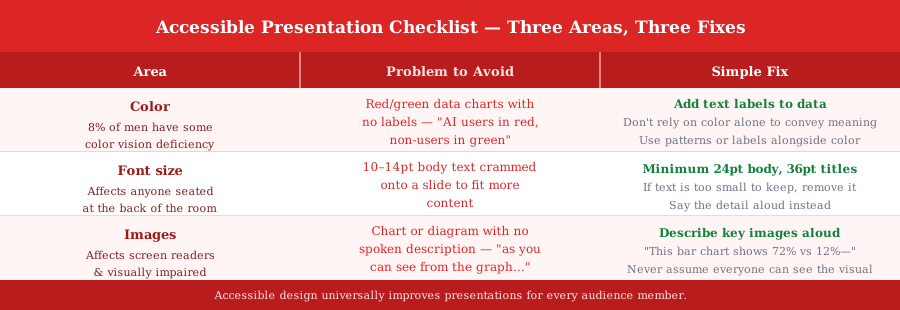
💡 Tip: Never say 'as you can see from the graph...' unless you then describe what the graph shows in words. Around 8% of men have some form of color vision deficiency — if your chart relies on red vs green to convey meaning, that audience member gets nothing.
🎯
Worked Example: Accessible Data Slide Delivery
Topic: 'Why most professionals will never use AI effectively.' Here is how to deliver the 72%/12% data slide accessibly.
Accessible delivery of a bar chart slide — no assumptions about what the audience can see: SLIDE: A bar chart — two bars. No title text. No colour labels. Just two bars of different heights.
✗ INACCESSIBLE DELIVERY:
"As you can see here, the blue bar is significantly higher than the red one."
[8% of the room sees two grey bars. Everyone else has to guess which is which.]
——
✓ ACCESSIBLE DELIVERY:
"This chart shows two numbers side by side."
"The tall bar on the left represents 72% — the proportion of professionals with access to AI tools."
"The short bar on the right represents 12% — the proportion who use them effectively."
"The chart is labelled, so you can refer back to it — but the point I want you to take away is that gap. Not the bars. The distance between them."
👂
Hearing Accessibility — Three Simple Rules
Hard-of-hearing audience members are present in almost every professional audience. These three rules serve them without changing the presentation for anyone else.
- ✓Always repeat audience questions before answering — The question came from the room — most people heard it at 40% volume. Repeat it clearly before answering. It also gives you thinking time.
- ✓Never speak while facing away from the audience — Some audience members lip-read partially — turning to face your screen mid-sentence cuts them off
- ✓Enable live captions for virtual and hybrid sessions — PowerPoint, Zoom, and Google Meet all offer automatic live captioning — enable it by default, not on request
Key Takeaways
- 1Accessible design is universally better design — every fix improves the presentation for everyone
- 2Never rely on color alone to convey meaning — add text labels to all data charts
- 3Minimum 24pt body text, 36pt titles — if text is too small to keep, say it aloud and remove it from the slide
- 4Always describe key images and charts verbally — never say 'as you can see' without then describing what they see
- 5Repeat audience questions before answering; enable live captions for virtual and hybrid sessions
What's Next
Continue through the course in order, or jump back to review earlier lessons.